Compress PDF for Octoboard: Make Marketing Reports and Dashboard PDFs Smaller Without Hurting Readability
To compress a PDF for Octoboard, export the report or dashboard PDF, upload it to LifetimePDF's Compress PDF tool, start with Medium compression, and keep the smaller copy only if KPI widgets, chart labels, tables, notes, and white-label sections still look clear.
For most Octoboard exports, aim for under 2MB for short dashboard snapshots and roughly 2MB to 5MB for multi-page monthly reports, SEO recaps, PPC summaries, and client-ready reporting packs.
Octoboard solves the reporting side of the job. The annoying part usually starts afterward, when a finished PDF needs to move through email, a client portal, chat, a meeting agenda, or a shared drive without feeling heavy or awkward. Good compression is not about crushing the file to the smallest possible number. It is about making the report lighter while keeping the details that still carry the story.
Fastest path: run the Octoboard file through LifetimePDF's Compress PDF tool on Medium, then split or trim pages only if the report still contains more weight than the next reader actually needs.
Need the short version? Jump to Quick start: compress a PDF for Octoboard in under 2 minutes.
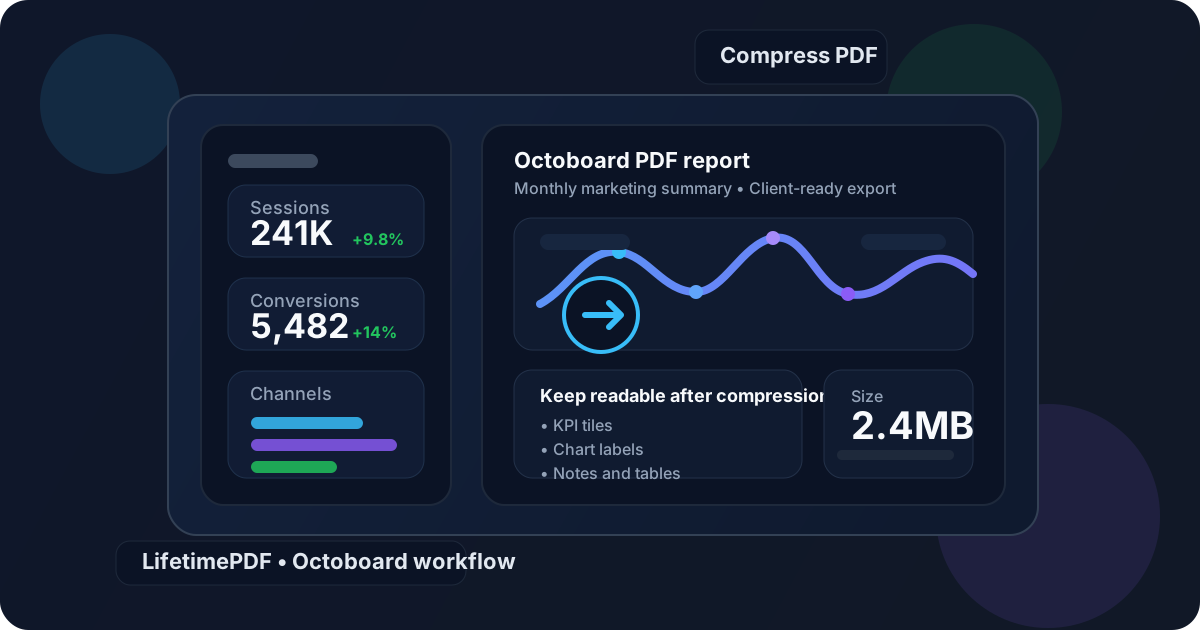
Table of contents
- Quick start: compress a PDF for Octoboard in under 2 minutes
- Why smaller PDFs help in Octoboard workflows
- What file size should you aim for?
- Which compression level should you choose?
- Step-by-step: shrink an Octoboard PDF with LifetimePDF
- Best strategy for common Octoboard file types
- What if the PDF is still too large?
- How to keep Octoboard files readable and client-friendly
- Workflow habits that reduce PDF bloat
- Related LifetimePDF tools and useful internal links
- FAQ (People Also Ask)
Quick start: compress a PDF for Octoboard in under 2 minutes
If your real goal is simply make this Octoboard PDF smaller so it is easier to send, this workflow is usually enough:
- Open Compress PDF.
- Upload the final monthly report, dashboard snapshot, SEO recap, PPC summary, white-label client pack, or executive update you actually plan to share.
- Choose Medium compression first.
- Download the smaller result and compare the new size with the original.
- Open it once and check the details that matter most: KPI tiles, chart labels, date ranges, tables, notes, logos, section headings, and any screenshot callouts.
- If the file is still bulkier than you want, use Extract Pages, Split PDF, or Delete Pages before trying stronger compression.
Why smaller PDFs help in Octoboard workflows
Octoboard exports are rarely the final destination. They move through inboxes, client portals, WhatsApp threads, Slack messages, shared drives, meeting decks, and archived reporting folders. Even when the upload technically works, a heavy PDF still creates friction because people hesitate to open it on mobile, forward it, or skim it during a review call.
The extra weight usually does not come from the KPI itself. It comes from everything wrapped around it: screenshot-heavy appendix pages, repeated covers, oversized white-label sections, long tables, or one giant pack trying to satisfy every possible audience at once. Compression helps, but the bigger win often comes from pairing compression with slightly smarter packaging.
Why compression usually helps
- Faster sharing: smaller PDFs are easier to email, upload, and attach to status updates.
- Better mobile access: many reports get opened on laptops and phones, not only on big desktop screens.
- Cleaner client review: lighter files open more quickly during meetings and quick check-ins.
- Less archive bloat: monthly and quarterly reporting folders stay easier to manage.
- Less resend friction: you are less likely to hear “can you make the file smaller?” after the first send.
What file size should you aim for?
There is no single perfect number for every Octoboard export, but a few practical ranges keep you from compressing harder than necessary:
| Document type | Practical target | Why it works |
|---|---|---|
| One-page dashboard snapshots, quick client updates, and single-channel summaries | Under 2MB | Usually small enough for smooth sharing while keeping KPI tiles, chart labels, and short notes readable |
| Monthly reports, SEO recaps, PPC summaries, and white-label client packs | 2MB to 5MB | Keeps multi-page files practical without flattening the detail people still rely on |
| Appendix-heavy exports with screenshots and proof pages | 4MB to 8MB | Still workable if the appendix really needs to stay attached, but often worth splitting |
| Over 8MB | Review and clean first | Often means too many pages, repeated sections, or oversized screenshots are doing most of the damage |
These are working targets, not strict rules. A summary for a busy client can usually aim smaller. A proof-heavy internal archive copy can afford to be a bit heavier. The right number depends on who will open the file and what they actually need from it.
Which compression level should you choose?
For most Octoboard exports, Medium compression is the safest first move. Reporting PDFs often contain small labels, legends, mini charts, date ranges, and short written commentary. Those are exactly the details that can soften first if you push too hard too early.
| Compression level | Best for | What to expect |
|---|---|---|
| Low | Already-close files, dense tables, and reports where tiny labels matter more than extra shrinkage | Gentle reduction with very little visual change |
| Medium | Most client reports, dashboard snapshots, and monthly recaps | Best balance between lower size and clean readability |
| High | Bulky appendix pages, screenshot-heavy exports, and oversized packs that still need further reduction | Stronger size cuts, but you should preview the result carefully |
Start in the middle unless you already know the file is unusually delicate or unusually bloated. Most of the time, Medium solves the problem faster than a cycle of overthinking and repeated recompression.
Step-by-step: shrink an Octoboard PDF with LifetimePDF
Step 1: Start with the final export
Make sure you are using the exact report you really plan to send. If you still need to swap sections, update dates, fix wording, or remove a client note, do that first. It is cleaner to optimize the final PDF once than to keep compressing old drafts.
Step 2: Open the compressor
Go to LifetimePDF Compress PDF and upload the file. That could be a dashboard snapshot, white-label report, SEO recap, PPC performance summary, marketing overview, or leadership update.
Step 3: Choose Medium compression first
Medium is usually the safest default because it cuts enough size to matter without immediately harming readability. In Octoboard workflows, the tiny elements are often the most valuable ones, so preserving them matters.
Step 4: Review the file like the next reader will
Open the compressed copy once and inspect the details people actually rely on: chart labels, KPI tiles, trend lines, date ranges, tables, short notes, logos, and any screenshot proof. If those still look clear at normal zoom, the file is probably ready.
Step 5: Clean the package instead of crushing it
If the file is still heavier than you want, stronger compression is not always the best next move. Often it is better to use Extract Pages, Delete Pages, Split PDF, or Crop PDF before trying a stronger setting.
Ready now? Compress the Octoboard file first, then trim or split only if the report still feels bulkier than the audience needs.
Best strategy for common Octoboard file types
Not every Octoboard export needs the same treatment. A one-page dashboard snapshot behaves very differently from a long white-label report with screenshot-heavy appendix pages.
Dashboard snapshots
These should stay fairly light. If a single snapshot already feels bulky, there is often an avoidable cause like oversized images, decorative branding, or extra pages hiding in the export.
Monthly client reports
These usually combine headline KPIs, chart sections, commentary, and a bit of proof. Medium compression is often enough, but if the pack has grown over time, trimming repeated appendix pages may do more than stronger compression.
White-label reports
Branding matters, but it should not make the file painful to open. Clean cover pages and section breaks are useful. Decorative repetition is usually where the waste starts.
SEO, PPC, and multi-channel summaries
These tend to include small labels, date comparisons, and dense tables. That is why aggressive compression can backfire. The report may remain technically readable while feeling tiring to scan.
Executive summaries plus appendix proof
If the summary and proof pages serve different audiences, consider keeping them separate. One focused PDF for decision-makers and one deeper appendix for reference often works better than one oversized file for everyone.
What if the PDF is still too large?
If one compression pass did not get the file where you need it, do not assume the next answer is simply compress harder. Over-compression is how clean reports start looking brittle, muddy, or cheap. Cleanup usually works better.
- Too many pages? Remove extras with Delete Pages.
- Only the summary matters? Keep the decision-ready pages with Extract Pages.
- One giant client pack? Break it up with Split PDF.
- Wasted margins or oversized screenshots? Trim them with Crop PDF.
- Need to confirm nothing important changed? Use Compare PDFs on the original and compressed versions.
- Want a cleaner client-ready file? Review hidden properties with PDF Metadata Editor.
In many reporting workflows, the real win is not a smaller copy of the same oversized pack. It is a cleaner, tighter report that respects the audience's attention.
How to keep Octoboard files readable and client-friendly
The fear behind compression is not the file size itself. It is the worry that the document will stop feeling useful. That concern is fair, but it is manageable if you preview the result and protect the details that break first.
- Check KPI tiles and mini charts first: they carry the headline numbers people scan immediately.
- Review chart labels and legends: tiny text is often the first thing to soften.
- Look at tables and date ranges: dense rows can become annoying before the rest of the page looks different.
- Read short notes and recommendations once: the report still needs to make sense without your spoken explanation.
- Open it on a smaller screen if clients often review reports on laptops or phones: mobile discomfort shows up faster than desktop discomfort.
Workflow habits that reduce PDF bloat
Better export habits reduce how much compression work you need in the first place. The strongest compression setting is rarely the smartest default.
- Export audience-specific PDFs instead of one giant all-purpose deck.
- Keep appendix pages separate when they are reference material rather than decision material.
- Trim repeated cover pages and old sections before you export the final copy.
- Compress once at the end instead of repeatedly recompressing old versions.
- Archive one full version, but send lighter copies day to day when the audience only needs the summary.
These habits usually improve the reading experience more than aggressive compression alone. A tidy report pack is easier to send, easier to store, and easier to trust later.
Related LifetimePDF tools and useful internal links
Compressing the PDF is often the main fix, but some Octoboard workflows benefit from one or two supporting tools first. These are the most useful follow-up options:
- Compress PDF - shrink the final report before sharing.
- Extract Pages - keep only the pages the reader really needs.
- Split PDF - separate summaries from appendices or proof sections.
- Delete Pages - remove repeated covers, blank pages, and stale sections.
- Crop PDF - trim wasted margins and oversized screenshot borders.
- Compare PDFs - confirm the compressed copy still preserves the details that matter.
- PDF Metadata Editor - clean file properties before client delivery.
If you want closely related reading around the same workflow, these guides fit naturally next: Compress PDF for Octoboard: Share Smaller Marketing Reports, Dashboard Snapshots, and Client PDFs Faster, Compress PDF for Octoboard Without Monthly Fees, Compress PDF for AgencyAnalytics, Compress PDF for Whatagraph, Compress PDF for DashThis, Compress PDF for Databox, How to Reduce PDF File Size for Email, and Compare PDF Versions Online.
Best workflow for most Octoboard exports: export a clean PDF, compress it once, preview it once, then trim or split only if the pack still feels heavier than it should.
FAQ (People Also Ask)
1) How do I compress a PDF for Octoboard?
Export the final Octoboard report as PDF, upload it to a compressor, start with Medium compression, and keep the smaller copy only if KPI widgets, chart labels, tables, notes, and screenshots still look clear. For most Octoboard workflows, Medium is the safest first step because it reduces size without making the report feel rough or hard to trust.
2) What file size should I aim for before sharing an Octoboard report?
Under 2MB is a strong target for short dashboard snapshots and focused client updates. Multi-page monthly reports, white-label packs, and appendix-heavy exports usually work well around 2MB to 5MB, and sometimes a bit higher if the visuals still read clearly and splitting would be awkward.
3) Will compression hurt readability or charts in an Octoboard PDF?
Usually not if you start with Medium compression and preview the result once. The bigger risk is a report with lots of screenshots, repeated proof pages, or tiny labels that gets pushed too hard just to hit a smaller number.
4) Should I split one big client pack instead of compressing harder?
Often, yes. If one PDF tries to serve executives, account managers, and deep-dive reviewers all at once, separate files usually work better than forcing one oversized pack through more aggressive compression.
5) Which LifetimePDF tools pair best with Octoboard exports?
Compress PDF is the main starting point. Extract Pages, Split PDF, Delete Pages, Crop PDF, Compare PDFs, and PDF Metadata Editor are all useful when you need smaller, cleaner, client-ready reporting files.
Ready to shrink your Octoboard PDF?
Best workflow: Export clean PDF - Compress - Review - Split or trim if needed - Share or archive.
Published by LifetimePDF - Pay once. Use forever.