Compress PDF for New Relic Without Monthly Fees: Shrink Dashboard Exports, APM Reports, and Incident Summaries Without Another Subscription
If you need to compress a PDF for New Relic without monthly fees, export the final file, upload it to LifetimePDF's Compress PDF tool, start with Medium compression, and keep the smaller copy only if charts, timestamps, service names, legends, and screenshots still look clean.
For most New Relic workflows, that is enough to shrink dashboard exports, APM reports, incident summaries, postmortem packs, and audit PDFs without paying another subscription just to solve file-size friction.
New Relic work is already expensive in the ways that matter: engineering time, incident pressure, production risk, and the cost of slow handoffs when someone needs the right evidence fast. Adding a monthly bill just to make a PDF smaller is usually overkill. The better path is often simple: clean up the final PDF, preserve readability, and move on.
Fastest path: run the New Relic PDF through LifetimePDF's Compress PDF tool at Medium, then split, extract, crop, or delete pages only if the packet still carries more weight than the engineer, manager, auditor, or client actually needs.
In a hurry? Jump to Quick start: compress a New Relic PDF in under 2 minutes.
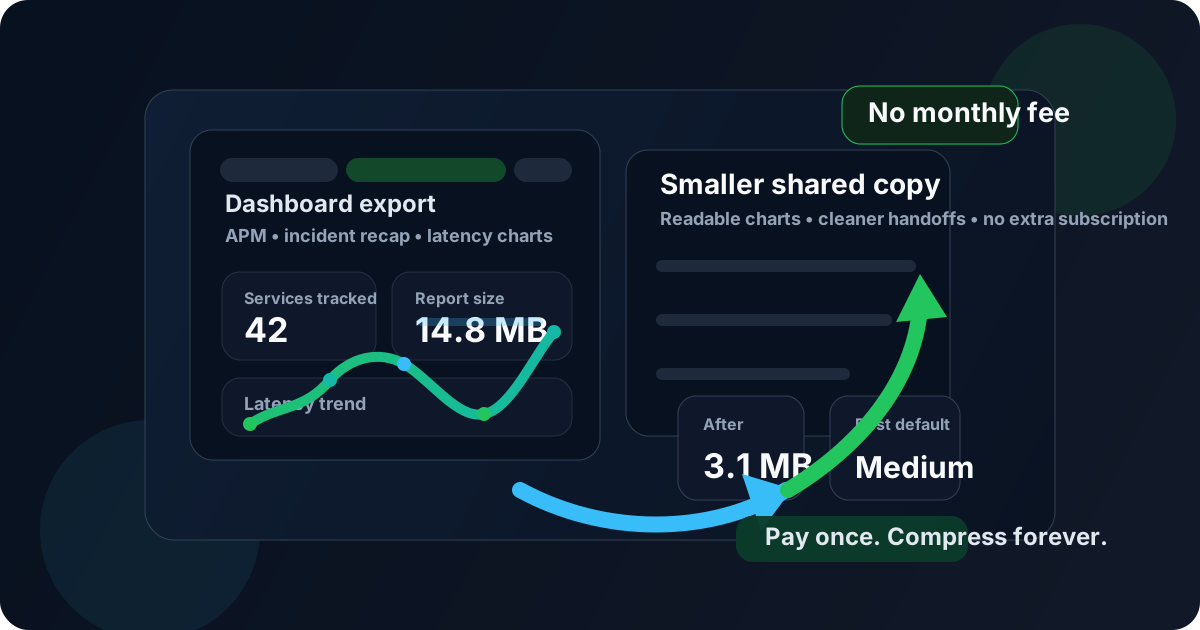
Table of contents
- Quick start: compress a New Relic PDF in under 2 minutes
- Why "without monthly fees" matters here
- Why smaller PDFs help in New Relic workflows
- What file size should a New Relic PDF be?
- Which compression level should you choose?
- Step-by-step: use LifetimePDF to shrink the file
- Best approach for common New Relic PDFs
- What to do if the PDF is still too large
- How to keep charts and evidence readable
- Workflow habits that reduce PDF bloat
- Related LifetimePDF tools and useful reading
- FAQ (People Also Ask)
Quick start: compress a New Relic PDF in under 2 minutes
If your real goal is simply make this New Relic PDF smaller so it is easier to upload, attach, share, and reopen, this workflow is usually enough:
- Export the final dashboard pack, APM report, incident summary, postmortem packet, or audit PDF you actually plan to share.
- Open Compress PDF.
- Upload the file and choose Medium compression first.
- Download the smaller result and compare the new size.
- Preview the details that matter most: chart labels, timestamps, service names, legends, notes, tables, and screenshots.
- If the file is still bulky, use Extract Pages, Split PDF, Crop PDF, or Delete Pages before forcing stronger compression across the whole packet.
Why "without monthly fees" matters here
The real search intent behind this keyword is not only, "Can I make this PDF smaller?" It is usually, "Can I solve this one annoying file problem without adding another recurring bill?" That is a reasonable question. New Relic already lives beside cloud spend, incident tooling, dashboards, logging, ticketing, and internal documentation systems. Another subscription for finish-line PDF cleanup often makes no sense.
A pay-once workflow fits the job because compression is usually the last mile. You export the report, trim the dead weight, check readability once, and share the result. That is especially true for one-off incident reviews, stakeholder updates, audit evidence packets, and customer-facing summaries where the document only needs to become lighter, not reinvented.
Why smaller PDFs help in New Relic workflows
New Relic PDFs rarely stay where they started. A dashboard export created for one review can end up in a ticket, a postmortem, an audit folder, a customer recap, or a leadership summary. If the file is heavier than it needs to be, every one of those handoffs becomes slower and clumsier.
Smaller PDFs usually upload faster, open more smoothly on mobile, feel lighter inside shared channels, and create less friction when somebody urgently needs evidence during an incident or review. The goal is not to chase the smallest number possible. The goal is to remove waste while preserving the details that make the document useful.
Compression helps because it can:
- Speed up uploads: useful when a review packet needs to be attached to a ticket, wiki, or incident doc fast.
- Reduce mobile frustration: many people first open shared PDFs on a phone, tablet, or laptop away from their main desk.
- Clean up screenshot-heavy evidence: dashboards, traces, and postmortem appendices often carry more visual weight than they need.
- Make repeat access smoother: the same file may be reopened by engineers, managers, auditors, or clients more than once.
- Help external handoffs: lighter PDFs are easier to send outside the team without looking messy or bloated.
Good compression is about removing pointless bulk while keeping the pieces people actually need: service names, timestamps, legends, chart axes, annotations, screenshots, and readable small text.
What file size should a New Relic PDF be?
There is no single perfect number because a one-page incident summary behaves differently from a screenshot-heavy postmortem packet, a multi-page dashboard export, or an audit evidence bundle that mixes charts and scanned approvals. Practical targets are more useful than unrealistic size goals.
| Document type | Practical target | Why it works |
|---|---|---|
| Text-heavy summary, recap, or lightweight export | < 1MB to 2MB | Usually enough for fast previews, clean ticket attachments, and mobile review |
| Dashboard review pack or mixed-content PDF | 2MB-5MB | Leaves room for charts, legends, screenshots, and notes without feeling bloated |
| Screenshot-heavy incident packet or audit evidence bundle | 4MB-8MB | More realistic when the file contains detailed screenshots, tables, and supporting material that still needs to stay legible |
If you can get under 2MB without harming readability, that is an excellent result for many New Relic use cases. If the file includes dense screenshots, long appendices, or mixed-content evidence, it is often smarter to accept a slightly larger result or split the packet instead of crushing the whole thing into an arbitrary number.
Which compression level should you choose?
Most people lose time by either picking the harshest compression first or rerunning the same bloated file without changing its structure. A calmer workflow works better.
- Low compression: best when the PDF is already fairly clean and only needs a light trim.
- Medium compression: best starting point for most New Relic workflows because it usually cuts size while preserving chart labels, legends, notes, and screenshot detail.
- High compression: use carefully when the file is still too heavy after cleanup and you can accept a more aggressive tradeoff.
Step-by-step: use LifetimePDF to shrink the file
- Start with the final version. Do not compress five intermediate exports when only one shared copy matters.
- Open Compress PDF.
- Upload the document. This can be a dashboard export, APM report, incident summary, postmortem appendix, alert review packet, SLO report, or audit PDF.
- Choose Medium compression. It is usually the right first pass.
- Download the smaller file. Compare the new size to the original so you know whether the change was worthwhile.
- Open the compressed copy once. Check the exact parts that matter: legends, axes, timestamps, service names, screenshot callouts, and the smallest text in any tables.
- Only make further changes if the file is still heavier than it should be. Structural cleanup usually beats repeating stronger compression over and over.
That last step matters more than people expect. Many New Relic PDFs stay too large because of page-level waste, not because the useful engineering content is impossible to compress.
Good workflow: compress first, then decide whether you also need page cleanup, metadata cleanup, or a cleaner split between the summary and appendix.
Best approach for common New Relic PDFs
Dashboard exports and weekly review packs
These usually respond well to Medium compression. The main risk is tiny labels, legends, or timestamps becoming harder to read. If that happens, try structural cleanup before you jump to harsher compression.
APM reports and service performance summaries
These files can get bulky fast, especially when they include charts, screenshots, latency breakdowns, and multiple service views. Medium compression is usually safe, but always check legends, labels, and the busiest graph areas.
Incident summaries and postmortem packets
These often mix screenshots, commentary, charts, and appendices. Compress the final shared copy, but do not be afraid to split supporting evidence away from the main review packet when not everyone needs the entire bundle.
Audit and compliance evidence PDFs
Be more careful here. Small timestamps, log details, ticket references, and proof screenshots may matter later. Medium compression is usually fine, but always preview the smallest important details before you keep the result.
Executive review packs
Leadership often cares more about speed and clarity than raw detail. A smaller PDF that opens quickly and still preserves the main charts is usually better than a bulky export loaded with backup pages nobody will read.
What to do if the PDF is still too large
If the compressed PDF is still larger than you want, do not immediately slam it with maximum compression. Work through the obvious sources of waste first:
- Extract only the review pages: use Extract Pages when the recipient does not need the full bundle.
- Split one huge packet: use Split PDF if appendices or evidence sections can travel separately.
- Delete duplicate or junk pages: use Delete Pages to remove old exports, cover pages, blank scans, or duplicate screenshots.
- Crop screenshot waste: use Crop PDF when giant borders or empty space are inflating the file.
- Re-merge a cleaner packet: use Merge PDF after trimming the unnecessary parts.
How to keep charts and evidence readable
After compression, inspect the file the way the next reader will. Do not just glance at page one and assume everything is fine.
- Zoom in on the smallest chart labels and legend text.
- Check timestamps, service names, and annotation callouts.
- Review screenshot-heavy pages carefully.
- Look at any tables with incidents, metrics, or status notes.
- Make sure the file still feels polished enough to send to engineering leadership, auditors, or clients.
If one page looks much worse than the rest, that usually points to a source screenshot or export issue. Fixing the structure of that page often helps more than recompressing the entire document again.
Workflow habits that reduce PDF bloat
A lot of PDF size problems are self-inflicted. The report gets exported, screenshotted, merged into a larger packet, padded with backup pages, and finally sent out with half the working history still attached.
- Compress the final shared PDF, not every draft along the way.
- Keep backup evidence separate unless the recipient truly needs it.
- Remove duplicate screenshots and blank pages before compression.
- Use cleaner source exports when possible instead of rescuing messy ones later.
- Keep one internal archive copy and one recipient-facing copy if those jobs are different.
These habits save time because they reduce the need for last-minute cleanup exactly when an incident review, audit request, or stakeholder update is already in motion.
Related LifetimePDF tools and useful reading
If you work with New Relic PDFs often, these tools usually do most of the heavy lifting:
- Compress PDF for the first size reduction.
- Extract Pages when only part of the packet needs to go out.
- Split PDF for oversized review or audit bundles.
- Crop PDF to remove wasted screenshot borders.
- Delete Pages to strip duplicate exports and junk pages.
- PDF Metadata Editor to clean document properties before broader sharing.
- Compress PDF for New Relic: Share Smaller Dashboard Exports, APM Reports, and Incident Summaries Faster if you want the broader New Relic workflow guide without the pricing angle.
Suggested internal reading
- Compress PDF for Datadog Without Monthly Fees
- Compress PDF for Grafana Without Monthly Fees
- Compress PDF for LogicMonitor
- Compress PDF for PRTG
- Compress PDF Online Without Monthly Fees
- Compare PDF Versions Online
- Browse all LifetimePDF articles
Want the simplest New Relic PDF prep stack? Start with compression, then split or extract only when the next reader does not need the entire packet.
FAQ (People Also Ask)
How do I compress a PDF for New Relic without monthly fees?
Use a pay-once PDF tool like LifetimePDF, upload the New Relic PDF, start with Medium compression, and review the smaller result before sharing it. If the file is still too large, split or extract the pages the next reviewer actually needs instead of over-compressing the whole packet.
What file size should I aim for with New Relic PDFs?
Under 2MB is a strong target for lightweight summaries and text-heavy exports. Detailed dashboard packs, screenshot-heavy incident reviews, and audit evidence PDFs usually work better around 2MB to 5MB, or a bit higher if preserving readability matters more than chasing a smaller number.
Will compression make New Relic charts blurry?
It can if you compress too aggressively. Medium compression is usually the safest first pass because it cuts file size without wrecking chart labels, timestamps, service names, legends, or screenshot detail. Always preview the result once before you keep it.
Should I split a big incident or audit packet instead of compressing it harder?
Often, yes. If one file includes appendices, backup screenshots, internal notes, duplicate pages, or extra evidence that not every reader needs, splitting or extracting the useful section usually works better than forcing maximum compression across the whole packet.
Why look for a New Relic PDF workflow without monthly fees?
Because shrinking an exported New Relic PDF is usually a short finishing task, not a full software category that deserves another recurring bill. A pay-once tool is often the better fit when you just need the document smaller, cleaner, and easier to share.
Published by LifetimePDF - Pay once. Use forever.