Compress PDF for Marketing Miner: Reduce File Size for Keyword Reports Without Losing SEO Detail
To compress a PDF for Marketing Miner, export the file, upload it to LifetimePDF's Compress PDF tool, start with Medium compression, and keep the smaller copy only if keyword tables, SERP screenshots, and notes still read clearly.
For most Marketing Miner PDFs, under 2MB works well for short summaries, while broader research packs, screenshot-heavy exports, and appendix-heavy decks usually sit more comfortably around 2MB to 5MB.
Marketing Miner reports often become PDFs right at the moment they matter most. The research is done, the patterns are visible, and now the file needs to move through email, a client portal, a Slack thread, or a meeting agenda without feeling heavy and annoying. That is the real reason to compress it. You are not trying to win a file-size contest. You are trying to keep the report easy to open while preserving the details that make the SEO work credible.
Fastest path: run the Marketing Miner PDF through LifetimePDF's Compress PDF tool on Medium, then do one quick readability check before you send, upload, or archive the smaller copy.
In a hurry? Jump to Quick start: compress a Marketing Miner PDF in about 2 minutes.
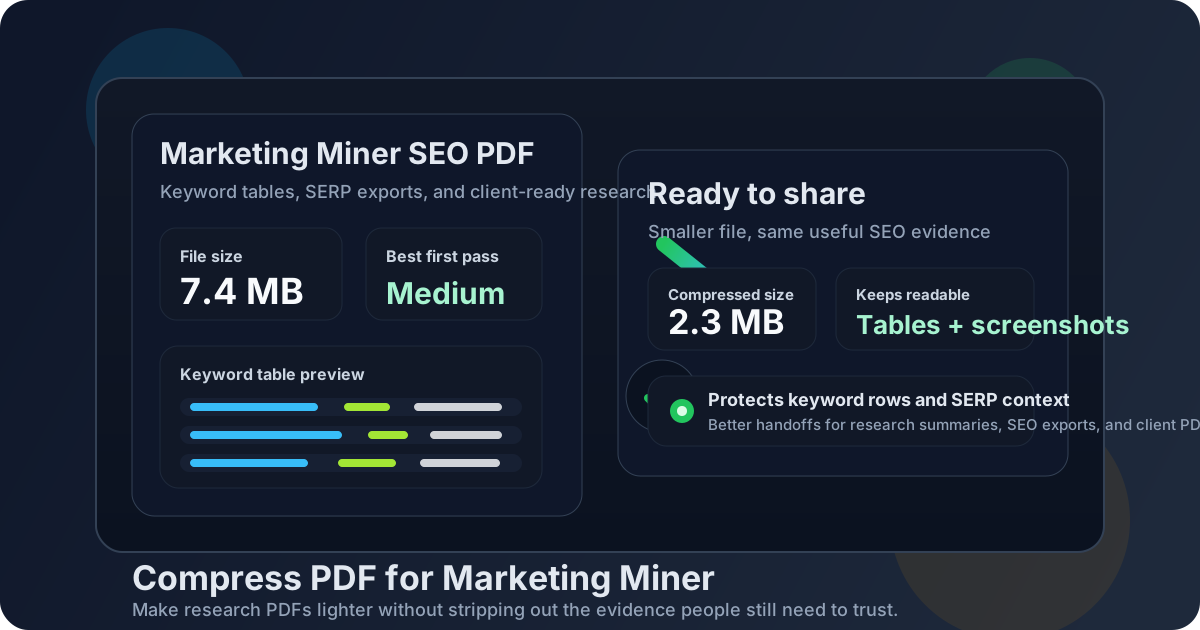
Table of contents
- Quick start: compress a Marketing Miner PDF in about 2 minutes
- Why Marketing Miner PDFs get bulky in the first place
- What file size should you aim for?
- Which compression level should you choose?
- Step-by-step: shrink a Marketing Miner PDF with LifetimePDF
- Best approach for common Marketing Miner PDF types
- What if the file is still too large?
- How to check quality before you send it
- Related LifetimePDF tools and useful reading
- FAQ (People Also Ask)
Quick start: compress a Marketing Miner PDF in about 2 minutes
If your real goal is simply make this Marketing Miner PDF smaller so it is easier to share, this is the shortest reliable workflow:
- Export the Marketing Miner file you actually plan to send, whether that is a keyword report, SERP analysis, competitor snapshot, topic map, or client-ready summary.
- Open Compress PDF.
- Upload the file and choose Medium compression first.
- Download the smaller result and compare the new size with the original.
- Preview the sensitive details once: keyword rows, search volume columns, trend charts, dates, SERP screenshots, and short recommendations.
- If the PDF still feels heavy, extract the pages the next reader needs, split the appendix, or crop wasteful screenshot margins before you try stronger compression.
Why Marketing Miner PDFs get bulky in the first place
Marketing Miner outputs tend to become large for ordinary reasons. The research may include multiple tables, exported charts, screenshots of SERPs, annotations from a strategist, and appendix pages added for context. None of that is wrong. It just means the final PDF often carries more visual weight than the next reader actually needs.
Compression helps because it reduces the travel cost of the document. The report uploads faster, previews more easily, and feels less painful inside email, project systems, or client folders. The real win is not a tiny number in the file properties. The real win is a report that opens quickly and still lets someone read the evidence without second-guessing it.
Common reasons Marketing Miner PDFs grow too large
- Screenshot-heavy SERP analysis: full-page captures and image-rich evidence stacks add weight fast.
- Multiple research sections in one file: keyword ideas, competitors, clustering, and appendices often get packaged together.
- Repeated exports: teams sometimes combine several versions of the same research into one deck.
- Visual whitespace: oversized margins, wide browser captures, and empty pages waste space without adding insight.
- Client packaging: once branding, cover pages, comments, and supporting notes get added, the file becomes heavier than the raw research ever was.
What file size should you aim for?
There is no perfect universal number, but these ranges are useful in real Marketing Miner workflows:
| PDF type | Practical target | Why it works |
|---|---|---|
| Short keyword summary or focused client update | Under 2MB | Easy to email, upload, and review quickly. |
| Standard research recap with tables and a few screenshots | 2MB to 4MB | Keeps the PDF comfortable to share without flattening useful detail. |
| SERP-heavy report or appendix-rich SEO deck | 3MB to 5MB | Often the best compromise when images and evidence matter. |
| Anything bigger than that | Split it | Very large PDFs are often a packaging problem, not a compression problem. |
If the file is heading to a client or executive, err on the side of readability. Nobody thanks you for shaving off one more megabyte if the keyword columns, screenshot labels, or action notes become annoying to parse.
Which compression level should you choose?
For Marketing Miner PDFs, the compression level matters because the file often mixes text-heavy tables with image-heavy evidence. That means the wrong setting can make one part of the report suffer more than the rest.
Low compression
Use this when the PDF already looks fairly efficient and you just want a light trim. It is useful for clean text-based summaries, but it often does not reduce enough size when screenshots are driving the weight.
Medium compression
This is the best default for most people. Medium usually cuts enough size to make the file easier to send while keeping keyword tables, chart labels, and SERP screenshots readable. If you only try one setting first, make it this one.
Strong compression
Use this only when file size matters more than polish, or after you have already trimmed the structure and the PDF is still too heavy. It can help, but it is more likely to soften screenshot text, blur small labels, or make dense table content feel less crisp.
Best sequence: try Medium first, then restructure the PDF with Extract Pages or Split PDF before jumping to stronger compression.
Step-by-step: shrink a Marketing Miner PDF with LifetimePDF
- Export the final PDF: use the version you actually intend to share, not a larger internal draft with duplicate support pages.
- Open the compressor: go to LifetimePDF Compress PDF.
- Upload the file: this can be a keyword research summary, SERP comparison report, competitor snapshot, or a stitched client-ready SEO deck.
- Choose Medium compression: this is the safest starting point for mixed table-and-screenshot reports.
- Download the result: compare the new file size before you replace the original.
- Review the weak points: check small text, chart legends, screenshot notes, table rows, dates, and recommendation boxes.
- Decide whether structure should change: if the PDF is still too large, split the appendix, delete duplicate pages, or extract only the share-worthy section instead of forcing stronger compression right away.
This is usually faster than chasing the smallest possible file with repeated exports. A cleaner structure plus medium compression beats brute-force shrinking most of the time.
Best approach for common Marketing Miner PDF types
Keyword research reports
These are often table-heavy rather than image-heavy. Medium compression usually works well, but your main quality check should focus on row clarity, search volume columns, keyword labels, and any grouping notes. If the file is still large, there may be too many sections combined rather than too much image weight.
SERP screenshot exports
This is where compression needs a little more care. Screenshots are often the heaviest part of the PDF, and they are also where blurry text becomes obvious fastest. Medium is still the best place to start, but crop unnecessary browser chrome or oversized margins if the screenshots are consuming space without adding insight.
Competitor snapshots and opportunity recaps
These tend to work best when the story is short. If the next reader only needs the headline findings, extract the executive pages and keep the supporting evidence in a second file. That usually produces a cleaner handoff than compressing a single long pack more aggressively.
Client-ready SEO decks
These often contain the most avoidable weight because they bundle cover pages, notes, screenshots, exports, and appendix sections in one place. Compress them, yes, but also ask whether every page belongs in the version the client will actually open.
What if the file is still too large?
If the compressed PDF is still bulkier than you want, the next move is usually structural rather than more aggressive compression.
- Extract the pages that matter: use Extract Pages to isolate the decision-ready section.
- Split long appendices: use Split PDF when the report contains one section for action and another for proof.
- Delete repeated pages: remove duplicate exports, old cover sheets, or stale support pages with Delete Pages.
- Crop wasteful screenshots: use Crop PDF if big margins or browser chrome are taking up space.
- Compare versions before sharing: if you made a cleaner second pass, Compare PDFs helps confirm nothing important disappeared.
In many SEO workflows, the biggest reduction comes from sending less document, not from crushing the same document harder.
How to check quality before you send it
Do one fast preview before the compressed file leaves your hands. You do not need a deep audit. You just need to confirm that the smallest useful details still do their job.
Check these points first
- Keyword rows still separate cleanly from one another.
- Search volume, trend, or CPC columns remain readable at normal zoom.
- SERP screenshots do not turn into fuzzy evidence blobs.
- Chart labels and axes still make sense without zooming excessively.
- Dates, notes, and short recommendations still feel trustworthy.
- Cover pages and appendix sections did not end up dominating the file size for no reason.
If readability drops too far: go back to Medium compression and reduce pages instead. That usually produces a stronger result than leaving the report blurry.
Related LifetimePDF tools and useful reading
If you work with SEO PDFs often, these tools and guides pair well with this workflow:
- Compress PDF for the main size reduction pass.
- Extract Pages when only part of the research needs to be shared.
- Split PDF for large appendix-heavy packs.
- Crop PDF to remove wasted screenshot margins and browser chrome.
- Compare PDFs when you want to sanity-check two report versions.
Useful related reading:
- Compress PDF for Marketing Miner Without Monthly Fees
- Compress PDF for Ahrefs
- Compress PDF for Google Search Console
FAQ (People Also Ask)
How do I compress a PDF for Marketing Miner?
Export the Marketing Miner report as PDF, upload it to a PDF compressor, start with Medium compression, and preview the smaller result before you share it. Medium is usually the safest first step because it cuts file size while keeping keyword tables, screenshots, and notes readable.
Will compression make Marketing Miner tables or SERP screenshots blurry?
It can if you compress too aggressively. That is why Medium compression is the best default for most Marketing Miner PDFs. Review keyword rows, chart labels, screenshot callouts, and short recommendations once before you replace the original.
What file size should I aim for with Marketing Miner PDFs?
Under 2MB is a practical target for short summaries and lightweight client updates. Broader research packs and screenshot-heavy reports often work better around 2MB to 5MB as long as the smallest useful text still looks clear.
Should I split a large Marketing Miner PDF instead of compressing it harder?
Often, yes. If one file mixes the executive summary, screenshots, appendix pages, and raw exports for different readers, splitting it usually produces a cleaner handoff than pushing the whole document through stronger compression.
Which LifetimePDF tools help besides Compress PDF?
Split PDF, Extract Pages, Delete Pages, Crop PDF, and Compare PDFs all help reduce friction without forcing the whole report into heavier compression than it really needs.
Bottom line: if you need to compress a PDF for Marketing Miner, start with Medium compression, protect the small details that prove the research, and split the file when the real problem is packaging rather than pure size.