Compress PDF for Google Forms: Make File Uploads Smaller Without Hurting Readability
To compress a PDF for Google Forms, upload the final file to LifetimePDF's Compress PDF tool, start with Medium compression, and keep the smaller copy only if text, signatures, screenshots, and form fields still look clear.
For most Google Forms uploads, under 5MB is a strong everyday target, and under 2MB is even safer when the form feels strict, the connection is weak, or the file came from a phone scan.
Google Forms upload problems usually appear at the least convenient moment. A deadline is close, the file is finished, and then the form refuses the PDF, stalls on upload, or silently acts like the document is heavier than it should be. The goal is not to chase the tiniest number possible. It is to make the file lighter while keeping it readable, trustworthy, and easy for the reviewer to open on the first try.
Fastest path: run the PDF through LifetimePDF's Compress PDF tool on Medium, then do one quick readability check before uploading the lighter copy to Google Forms.
Need the short version? Jump to Quick start: compress a PDF for Google Forms in under 2 minutes.
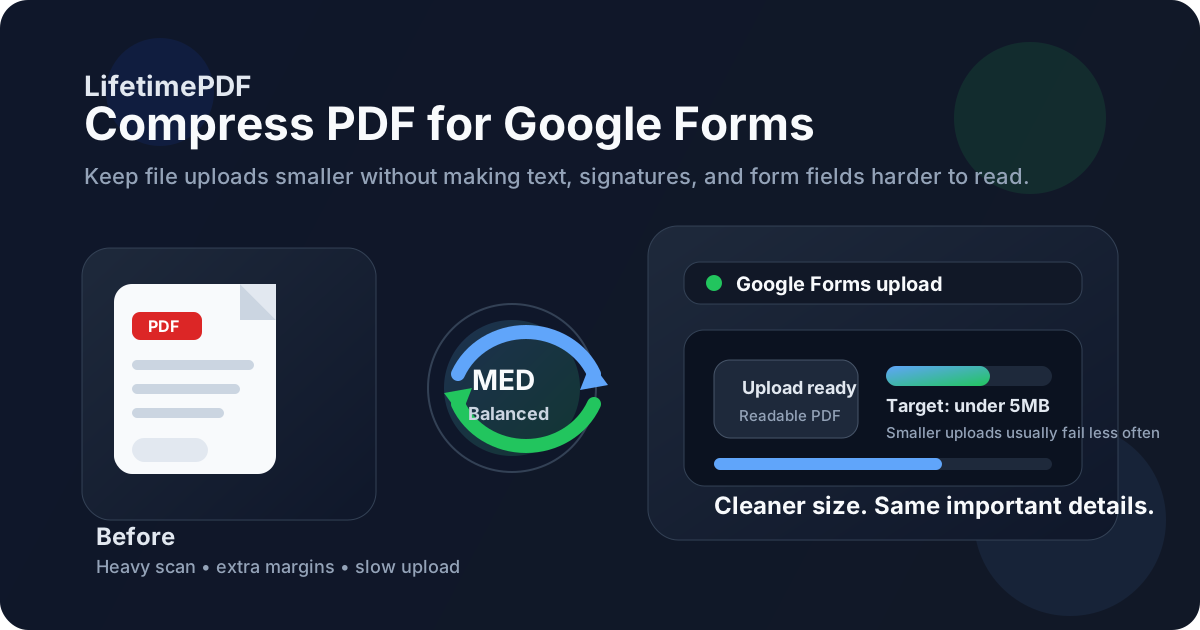
Table of contents
- Quick start: compress a PDF for Google Forms in under 2 minutes
- Why Google Forms PDFs get rejected so often
- What file size should you aim for?
- Which compression level should you choose?
- Step-by-step: shrink a Google Forms PDF with LifetimePDF
- Best strategy for common Google Forms file types
- What if the PDF is still too large?
- How to keep Google Forms PDFs readable and submission-ready
- Privacy and cleaner submission habits
- Related LifetimePDF tools and useful internal links
- FAQ (People Also Ask)
Quick start: compress a PDF for Google Forms in under 2 minutes
If your real goal is simply make this PDF smaller so the form accepts it cleanly, this workflow is usually enough:
- Open Compress PDF.
- Upload the exact PDF you plan to submit.
- Choose Medium compression first.
- Download the smaller result and compare the new size with the original.
- Open it once and check the details that matter most: names, dates, signatures, tables, screenshots, small text, and page order.
- If the form still rejects the file, use Extract Pages, Delete Pages, or Crop PDF before trying stronger compression.
Why Google Forms PDFs get rejected so often
Google Forms does not have one single upload rule that applies to every form on the internet. File-upload questions are configured by the person or organization that built the form. That means one PDF can upload fine in one place and fail somewhere else simply because the size limit, file allowance, or workflow is different.
The PDF itself also matters. A clean export from Word, Google Docs, or another text-first tool is usually lightweight. A short phone scan with dark borders, shadows, and repeated pages can be far heavier than a longer polished document. That is why compression works best when you think in two layers: reduce the file size, then remove obvious waste if the upload still feels stubborn.
What usually causes the problem
- Form-specific size limits: the form owner may allow less than you expect.
- Scan-heavy pages: image-based PDFs grow fast, especially from phones and older scanner apps.
- Weak or unstable connections: heavier files are more likely to stall or time out during upload.
- Extra pages nobody asked for: cover sheets, instructions, duplicate pages, and appendix material add size with no benefit.
- Messy scan margins: large white borders, desk backgrounds, and shadows create useless visual weight.
What file size should you aim for?
There is no universal Google Forms number because upload settings can vary by form owner. Still, a few practical ranges keep you from compressing harder than necessary while giving the file a good chance of uploading cleanly.
| Google Forms PDF type | Practical target | Why it helps |
|---|---|---|
| Resumes, letters, short assignments, signed forms | Under 2MB to 5MB | Usually light enough for smooth uploads without hurting readability |
| Transcripts, certificates, longer reports, supporting documents | 2MB to 5MB | Still practical for everyday submission workflows |
| Phone scans, image-heavy pages, portfolios | 5MB and up, but shrink if possible | These files naturally run heavier, so cleanup matters as much as compression |
| Over 10MB | Review and clean first | Often means the PDF is carrying unnecessary pages, large borders, or too much image data |
These are comfort targets, not rigid rules. If the PDF uploads easily, opens quickly, and still keeps the smallest important details readable, you are already close to the right answer.
Which compression level should you choose?
Most Google Forms uploads do best when you start gently. Stronger compression exists for a reason, but it works best after you have already removed obvious waste.
Low compression
Best for already-clean PDFs that only need a small size reduction and may still need to look extra crisp when printed.
Medium compression
Best default for Google Forms. It usually lowers size enough to matter without making text, signatures, and small labels feel rough.
High compression
Use when the file is still too heavy after cleanup, but always review the result carefully before you upload it.
If you are unsure, do not overthink it. Start with Medium, check the smaller copy once, and only push harder if the file is still awkwardly large. That one habit prevents a lot of blurry signatures and flattened small text.
Step-by-step: shrink a Google Forms PDF with LifetimePDF
- Use the final upload-ready file. Compress the version you actually plan to submit, not an earlier draft with extra pages or outdated attachments.
- Open Compress PDF.
- Choose Medium compression. It is the safest first pass for most resumes, forms, assignments, certificates, and application documents.
- Download the smaller copy. Compare file size, then open it once.
- Check the details people actually need. Names, dates, signatures, tables, small labels, screenshots, and page order are usually the first things worth checking.
- Upload only the cleaned final copy. Keep the original until the form accepts the reduced version and the new file still looks trustworthy.
Need a cleaner input first? Many oversized Google Forms PDFs improve more from cleanup than from harsher compression.
Best strategy for common Google Forms file types
Different uploads get heavy for different reasons. Matching the fix to the file type usually works better than throwing High compression at everything.
Resumes, cover letters, and text-first applications
These usually compress well. If one feels unexpectedly heavy, look for embedded screenshots, pasted images, or a messy export chain. Medium compression is often enough.
Signed forms and agreements
These need extra care because signatures, initials, dates, and form fields matter. Medium compression is safer than High, and one quick review is worth it before submission.
Transcripts, certificates, and supporting documents
These often stay manageable when they are clean exports. If they came from scans or print-and-scan workflows, the better fix is usually cropping borders or extracting only the required pages.
Homework, worksheets, and school uploads
These can be lightweight or messy depending on whether they were exported digitally or captured on a phone. If the document is scan-heavy, cleanup often matters more than compression alone.
Portfolios and image-heavy PDFs
These are naturally heavier. If the form only needs a sample rather than the full package, sending fewer pages often works better than crushing the whole document until it looks cheap.
What if the PDF is still too large?
If one compression pass is not enough, the file probably has structural weight, not just ordinary weight. That is the moment to clean it instead of simply pressing harder.
- Remove extra pages: cover sheets, blank pages, duplicate scans, instructions, or appendix pages the form does not actually need.
- Crop scanner waste: large borders, desk backgrounds, and shadows increase size without helping anyone.
- Extract only the required section: if the form only needs part of a packet, send part of the packet.
- Re-export from the source: a fresh export from Word, Docs, Excel, or PowerPoint is often smaller and clearer than a bad scan of an already digital file.
- OCR after cleanup when useful: scan-heavy files often become easier to search and manage once the text layer is recognized.
How to keep Google Forms PDFs readable and submission-ready
Small is good. Readable is non-negotiable. A PDF that uploads quickly but feels blurry, incomplete, or hard to trust creates a different kind of failure.
- Zoom in on the smallest text you expect someone to read.
- Check names, dates, signatures, totals, checkboxes, and form fields.
- Confirm screenshots, tables, or charts still make sense if the document includes them.
- Open the compressed copy on a phone if mobile review matters for the form workflow.
- Keep the original until the final upload is accepted.
This review does not need to be elaborate. One careful open is enough. The point is to catch obvious damage before the file becomes the version someone else evaluates.
Privacy and cleaner submission habits
Google Forms uploads often contain more personal information than people realize. A document that starts as a simple upload can include metadata, extra pages, old titles, and side material the reviewer never needed. That makes cleanup worth the extra minute.
- Upload only the pages the form actually requests.
- Remove blank or accidental pages that expose unrelated information.
- Use Redact PDF if the file contains private details that should not travel.
- Use PDF Metadata Editor if the filename or embedded title is messy or revealing.
- Use PDF Protect when the wider workflow calls for added control.
Smaller files are convenient. Cleaner files are safer. The best Google Forms upload is usually both.
Related LifetimePDF tools and useful internal links
Useful tools for Google Forms workflows
Want the simplest long-term setup? Use LifetimePDF as the pay-once toolkit for form uploads, cleanup, OCR, splitting, redaction, and ongoing PDF work without monthly subscription creep.
FAQ (People Also Ask)
How do I compress a PDF for Google Forms?
Upload the final PDF to a compressor, start with Medium compression, and keep the smaller copy only if text, signatures, screenshots, and form fields still look clear. For most Google Forms uploads, Medium is the safest first step because it reduces size without making ordinary documents feel rough or hard to read.
What PDF size should I aim for on Google Forms?
There is no single universal size because Google Forms upload questions can be configured differently by the form owner. As a practical target, under 5MB is strong for everyday submissions, and under 2MB is even safer for strict forms, weak connections, or scan-heavy files.
Why does Google Forms reject my PDF even when it is already a PDF?
The most common reasons are file-size limits set by the form owner, slow or unstable uploads, or bloated scan-based PDFs with too much image data, large margins, duplicate pages, or unnecessary attachments. Compressing the file and removing obvious waste usually solves the problem.
Will compression hurt readability or signatures on a Google Forms PDF?
Usually not if you start with Medium compression and the source file already contains clean text instead of messy phone scans. The bigger risk comes from image-heavy pages, low-quality scans, or repeatedly recompressing the same PDF without checking the result.
Which LifetimePDF tools pair best with Google Forms uploads?
Compress PDF is the main starting point. Extract Pages, Delete Pages, Crop PDF, OCR PDF, Rotate PDF, Redact PDF, PDF Protect, and PDF Metadata Editor are all useful when you need smaller, cleaner, submission-ready PDFs without oversharing extra pages or hidden details.
Published by LifetimePDF - Pay once. Use forever.