Compare Scanned and Edited PDF Versions: Best Workflow for Real Changes
Yes — you can compare scanned and edited PDF versions, but the cleanest results usually come from running OCR on the scan first and then comparing the OCR version to the edited file.
If you skip that prep, the comparison often gets buried under shadows, crooked pages, and image noise instead of showing the wording, numbers, or clause changes you actually care about.
This matters any time one version started as paper and the other became a cleaner digital PDF later. Maybe you scanned a signed contract and then received an updated draft, maybe a form was printed and marked up before someone re-exported it, or maybe an old archive scan needs to be checked against a corrected replacement file. The trick is not just comparing two PDFs. It is making sure the comparison reflects real changes, not scan clutter.
Fastest path: clean the scan, OCR it, compare both versions, then protect the final file only if it still needs secure sharing.
In a hurry? Jump to Quick start: compare a scanned PDF with an edited version in a few minutes.
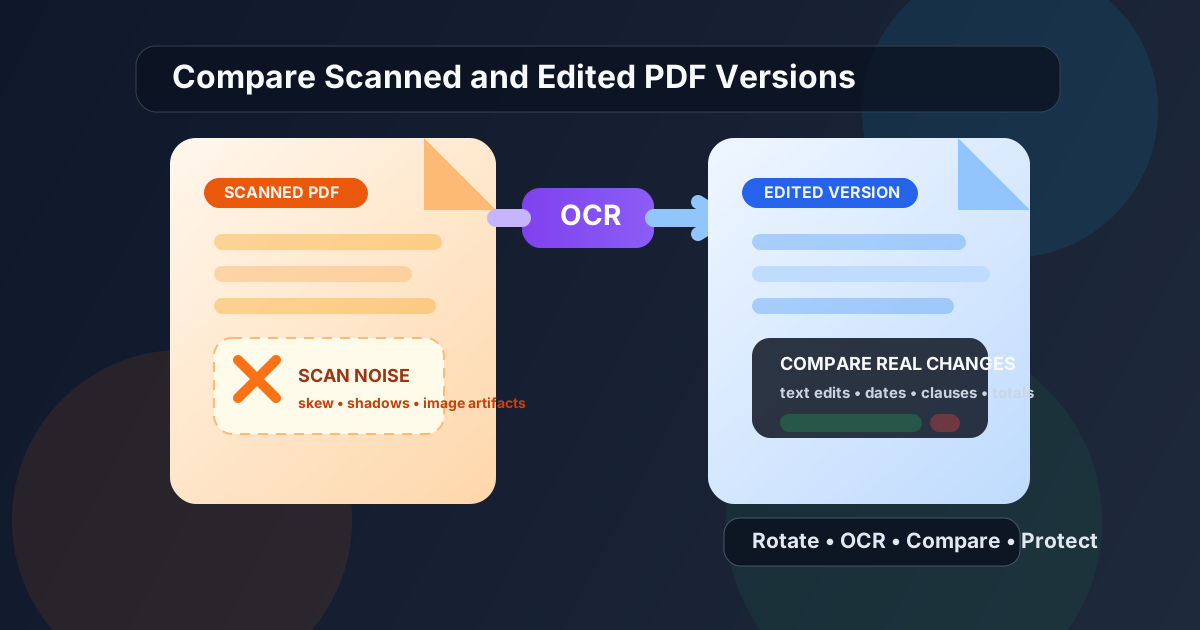
Table of contents
- Quick start: compare a scanned PDF with an edited version in a few minutes
- Why this comparison is harder than it looks
- Best workflow: compare scanned and edited PDF versions
- When OCR should come before comparison
- How to reduce false differences and scan noise
- What to check first after the comparison loads
- What to do after the review is finished
- Related LifetimePDF tools and guides
- FAQ (People Also Ask)
Quick start: compare a scanned PDF with an edited version in a few minutes
If you already have both files ready, this is the cleanest order:
- Open the scanned PDF and make sure it is readable and correctly oriented.
- If pages are sideways or badly aligned, fix them with Rotate PDF first.
- Run OCR PDF on the scanned version so the text becomes searchable.
- Open Compare PDFs and load the OCR-processed scan plus the edited digital version.
- Review the important differences first: names, dates, totals, signatures, clauses, page count, and any missing pages.
- If the approved file needs secure sharing, use PDF Protect before you send it onward.
Why this comparison is harder than it looks
Two PDFs can contain almost the same information and still look wildly different to a comparison tool when one file is scanned and the other is digitally exported. The scan may include shadows from the page edge, a slight tilt, different margins, darker text, background texture, or compression artifacts. The edited version, meanwhile, may have cleaner fonts, sharper alignment, and a flatter page structure.
That mismatch is why people sometimes feel like the comparison "is not working" when the real problem is the input quality. The comparison engine is not confused. It is honestly showing that the scan and the digital file are visually different. Your job is to reduce the meaningless differences until the useful ones stand out.
| Problem | What it causes | Best fix |
|---|---|---|
| Skewed or sideways scan | False highlights across whole pages | Rotate or re-align before comparison |
| Image-only text | Harder to compare content reliably | Run OCR first |
| Dark shadows and scan edges | Noise that looks like document changes | Clean or crop the scan if needed |
| Different page breaks or export settings | Layout changes that distract from wording edits | Focus on high-value sections first |
In other words, the smart workflow is not just compare. It is prepare → OCR → compare → validate.
Best workflow: compare scanned and edited PDF versions
Here is the workflow that usually produces the cleanest, fastest review.
1) Treat the scan like raw material, not the final comparison file
A scanned PDF is often a rough capture of a printed page, not a polished digital document. If you compare it immediately against a clean edited export, the mismatch itself becomes the story. Start by checking orientation, legibility, and whether the scan includes unnecessary borders or shadows.
2) Run OCR before comparing
Use OCR PDF on the scanned version. This step does not magically make the scan perfect, but it usually makes the text searchable and easier to line up mentally against the edited file. That matters when you are checking wording, figures, or clause changes instead of just page appearance.
3) Compare the OCR version against the edited PDF
Open Compare PDFs and use the OCR-processed scan as the baseline when the scan represents the earlier version. Then load the edited digital PDF as the updated version. This keeps the review anchored to the real timeline of the document.
4) Check the high-value changes before the cosmetic ones
Do not burn ten minutes on line-wrap noise before you check the numbers and legal meaning. Start with anything that could change the decision around the file:
- Names and parties
- Dates and deadlines
- Totals, pricing, quantities, or invoice values
- Clauses, notes, approval language, or signature areas
- Inserted, removed, or reordered pages
5) Save the security step for the end
Once you know which version is approved, then decide whether the file needs protection, compression, page extraction, or a cleaner handoff package. That keeps the workflow calm and avoids doing finishing work on the wrong version.
Need to run this workflow now?
When OCR should come before comparison
If the scanned PDF behaves like a photo of paper, OCR should usually happen before anything else. The easiest signs are familiar:
- You cannot highlight or search the text
- The page looks slightly blurred or uneven
- One version is clearly a print scan while the other came from Word, Google Docs, an app export, or a native PDF editor
OCR is especially valuable when the review depends on exact wording. Contracts, forms, policies, invoices, approvals, exhibit packets, and signed records all benefit because you are usually checking meaning, not just appearance.
How to reduce false differences and scan noise
Fix rotation and orientation first
If a page is sideways or slightly off-angle, the comparison can light up half the page for the wrong reason. Use Rotate PDF before you do anything more advanced.
Compare only the pages that matter
When the changed content is limited to a few pages, isolate them with Extract Pages. Smaller comparisons usually produce cleaner reviews and save time.
Do not overreact to every visual highlight
A scan and a digital export will almost never match perfectly at the pixel level. Read the differences in context. Ask whether the meaning changed, whether a page is missing, or whether the issue is just scan texture, line wrapping, or different margins.
Use OCR and human judgment together
OCR improves the situation, but it is still a preparation step, not a guarantee. If the original scan is faint, handwritten, or badly captured, you may still need a slower manual review for the final confirmation. The goal is to reduce noise enough that careful review becomes practical.
What to check first after the comparison loads
Once both files are in front of you, start with the sections that would actually change the outcome.
Contracts and approvals
- Party names and legal entities
- Dates, notice periods, and signature blocks
- Pricing, scope, liability, or renewal wording
Invoices, statements, and financial files
- Invoice number
- Payment due date
- Line-item totals, taxes, and grand total
- Banking or remittance details
Forms and records
- Filled fields versus blank fields
- Changed checkboxes or selections
- Attached pages or omitted exhibits
- Handwritten notes that were later typed into the edited version
If the scan and the edited PDF disagree in an important section, slow down there first. That is usually where the real work is.
What to do after the review is finished
Once you understand the differences, the next step depends on what the document needs next.
- Need a smaller upload? Use Compress PDF.
- Need to share the approved version securely? Use PDF Protect.
- Need only the changed pages? Use Extract Pages.
- Need to remove sensitive details before circulation? Use Redact PDF.
A clean real-world sequence usually looks like this: scan cleanup → OCR → compare → confirm the meaningful changes → protect or package the final file. That flow is much easier to trust than forcing a raw scan straight into a comparison and hoping the noise sorts itself out.
Once you confirm the differences, finish the handoff cleanly.
Related LifetimePDF tools and guides
Comparing a scanned PDF with an edited version works best when you can finish the whole review in one toolkit. These tools pair naturally with that job:
- Compare PDFs - review two versions side by side or through a visual difference workflow.
- OCR PDF - make scanned pages searchable before comparison.
- Rotate PDF - fix sideways or inconsistent scan orientation.
- Extract Pages - isolate the section that changed instead of reviewing a whole large file.
- PDF Protect - lock the approved version before sharing it externally.
- Redact PDF - remove sensitive information before wider circulation.
Related blog guides
- How to Compare Two PDF Documents Side by Side
- Compare PDF Versions Online
- Convert Scanned PDF to Text Without Monthly Fees
- How to Convert Scanned Documents Into Searchable PDFs
- Compare PDF Files Online & Detect Differences
FAQ (People Also Ask)
1) Can I compare a scanned PDF with an edited digital PDF?
Yes. The most reliable workflow is to OCR the scanned version first, then compare the OCR output against the edited PDF. That usually makes the review much clearer than comparing the raw scan directly.
2) Why does the comparison show so many differences when the documents are almost the same?
Raw scans often introduce shadows, tilt, blur, margin shifts, and compression artifacts. A comparison tool can interpret those as changes even when the wording is similar. OCR and basic cleanup reduce that noise.
3) Should I use OCR before comparing a scanned PDF to an updated version?
In most cases, yes. OCR makes the scan searchable and easier to review against a cleaner digital export, especially when you care about wording, dates, totals, or legal meaning.
4) What is the first thing I should review after the comparison loads?
Start with the changes that affect meaning: names, dates, totals, signatures, clauses, page count, and any added or missing pages. Cosmetic layout shifts matter much less than those core details.
5) How should I share the final reviewed PDF?
If the file contains confidential material, protect it with PDF Protect before sending it. If size is the issue, compress the approved version after the review is complete.
Ready to compare the scan and the edited version properly?
Best practical flow: clean the scan → OCR it → compare the real content → protect the approved version if it needs secure sharing.
Published by LifetimePDF — practical PDF tools without subscription fatigue.